
CBDB Desktop for macOS: Installation Guide / CBDB Desktop macOS 版安裝指南
Which file should I download? / 應該下載哪一個文件?
CBDB Desktop for macOS comes in two versions. Please choose the one that matches your Mac's processor.
CBDB Desktop macOS 版分為兩個版本,請根據您的 Mac 處理器類型選擇。
| File / 文件 | For / 適用於 |
|---|---|
CBDB-Desktop-mac-arm64.tar.gz | Macs with Apple Silicon (M1, M2, M3, M4, and later) 搭載 Apple 芯片(M1、M2、M3、M4 及更新型號)的 Mac |
CBDB-Desktop-mac-x64.tar.gz | Macs with an Intel processor 搭載 Intel 處理器的 Mac |
To check which processor your Mac has, choose Apple menu > About This Mac. If the line says Chip: Apple M…, download the arm64 version. If it says Processor: … Intel …, download the x64 version.
查看處理器類型的方法:點擊 蘋果菜單 > 關於本機(About This Mac)。如果顯示 芯片:Apple M…,請下載 arm64 版本;如果顯示 處理器:… Intel …,請下載 x64 版本。
Step 1. Download and extract the file / 第一步:下載並解壓文件
- Download the .tar.gz file that matches your Mac.
- Double-click the downloaded file. macOS will extract it automatically into a folder named CBDB-Desktop-mac-arm64 (or CBDB-Desktop-mac-x64).
- Open the folder. You should see the program cbdb and the folders/files Data, README, Static, and Templates.
- 下載與您的 Mac 對應的 .tar.gz 文件。
- 雙擊下載的文件,macOS 會自動將其解壓為名為 CBDB-Desktop-mac-arm64(或 CBDB-Desktop-mac-x64)的文件夾。
- 打開該文件夾,您會看到程序 cbdb,以及 Data、README、Static、Templates 等文件夾和文件。
Note: Please keep all of these files together in the same folder. Do not move cbdb out of the folder on its own, or the program will not be able to find its data.
注意: 請將以上所有文件保留在同一個文件夾中。不要單獨把 cbdb 移出文件夾,否則程序將無法找到所需的數據。
Step 2. Open cbdb for the first time / 第二步:首次打開 cbdb
Because CBDB Desktop is not distributed through the Mac App Store, macOS will block it the first time you open it. This is expected. Please follow the steps below to allow it to run.
由於 CBDB Desktop 並非通過 Mac App Store 發佈,首次打開時 macOS 會阻止它運行。這是正常現象,請按以下步驟允許其運行。
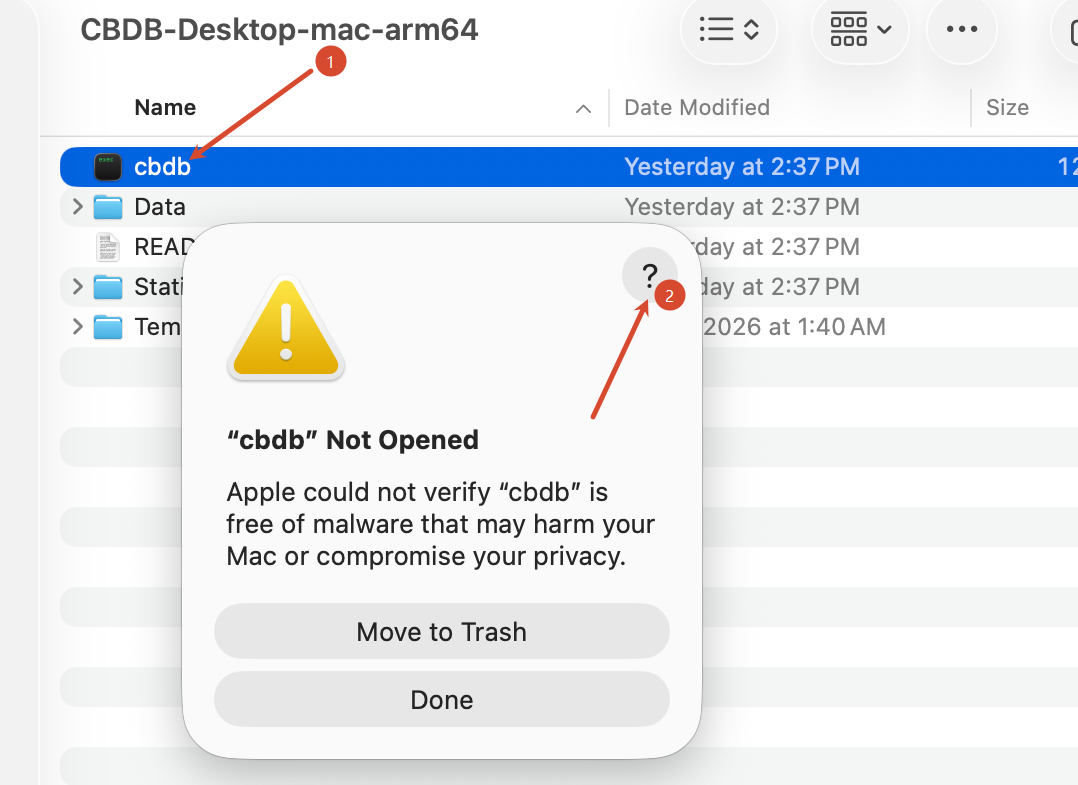
- Double-click cbdb (1). A warning will appear: "cbdb" Not Opened. Apple could not verify "cbdb" is free of malware that may harm your Mac or compromise your privacy.
- Do not click Move to Trash. Instead, click the ? button in the upper-right corner of the warning (2).
- 雙擊 cbdb (1)。系統會彈出警告:"cbdb" Not Opened(未打開"cbdb")。Apple could not verify "cbdb" is free of malware…(Apple 無法驗證"cbdb"是否包含可能危害 Mac 或隱私安全的惡意軟件。)
- 請勿點擊 Move to Trash(移到廢紙簍),而是點擊警告窗口右上角的 ? 按鈕 (2)。
Step 2 / 第二步
Step 3. Go to Privacy & Security settings / 第三步:前往“隱私與安全性”設置
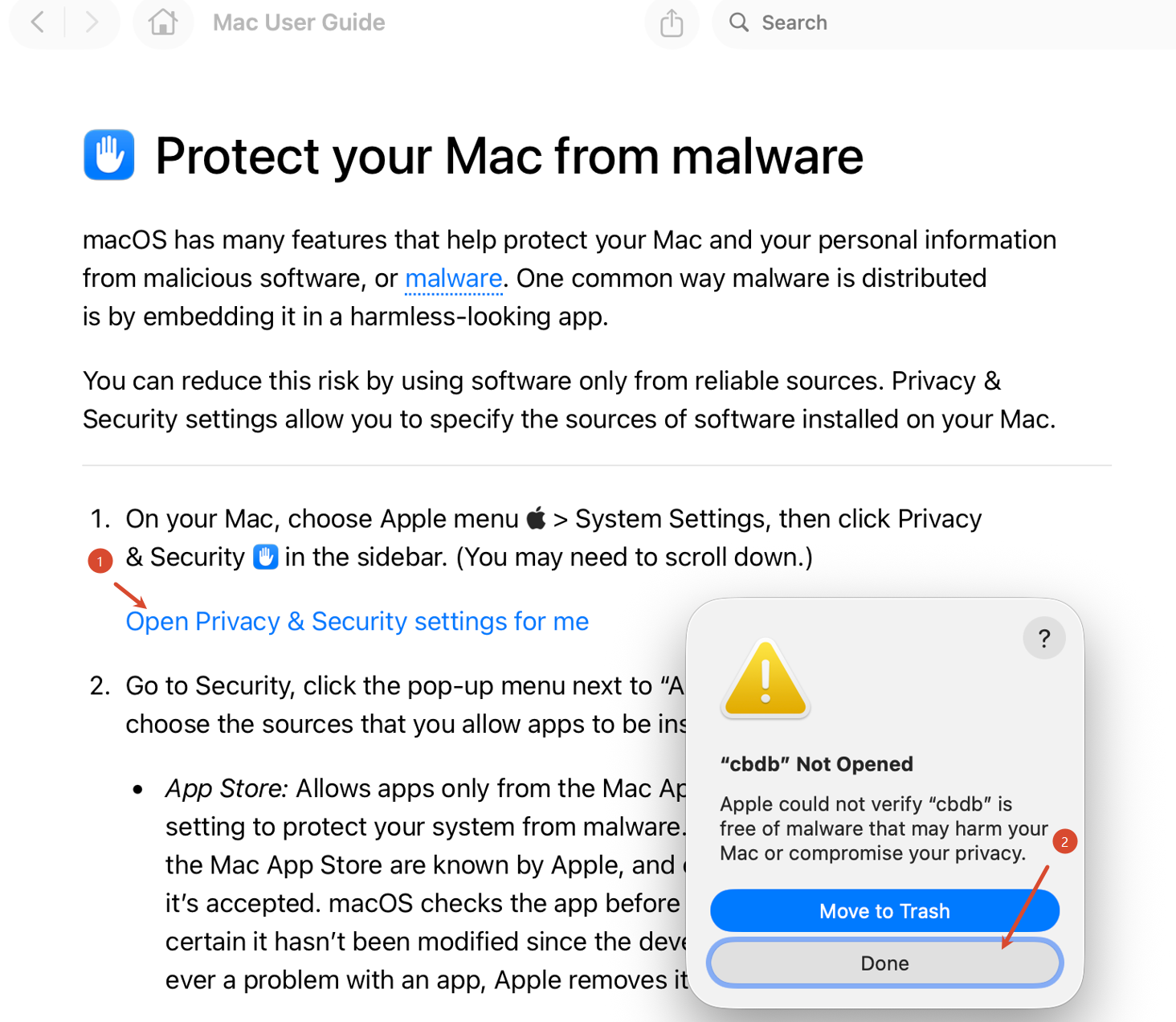
- The Mac User Guide page "Protect your Mac from malware" will open. Click the link Open Privacy & Security settings for me (1).
- Click Done to close the warning window (2).
- 系統將打開 Mac 使用手冊(Mac User Guide) 中的“Protect your Mac from malware(保護 Mac 免受惡意軟件侵害)”頁面。點擊鏈接 Open Privacy & Security settings for me(為我打開“隱私與安全性”設置) (1)。
- 點擊 Done(完成) 關閉警告窗口 (2)。
Step 3 / 第三步
Tip: You can also get there manually: choose Apple menu > System Settings, then click Privacy & Security in the sidebar (you may need to scroll down).
提示: 您也可以手動進入:點擊 蘋果菜單 > 系統設置(System Settings),然後在側邊欄中點擊 隱私與安全性(Privacy & Security)(可能需要向下滾動)。
Step 4. Allow cbdb to open / 第四步:允許打開 cbdb
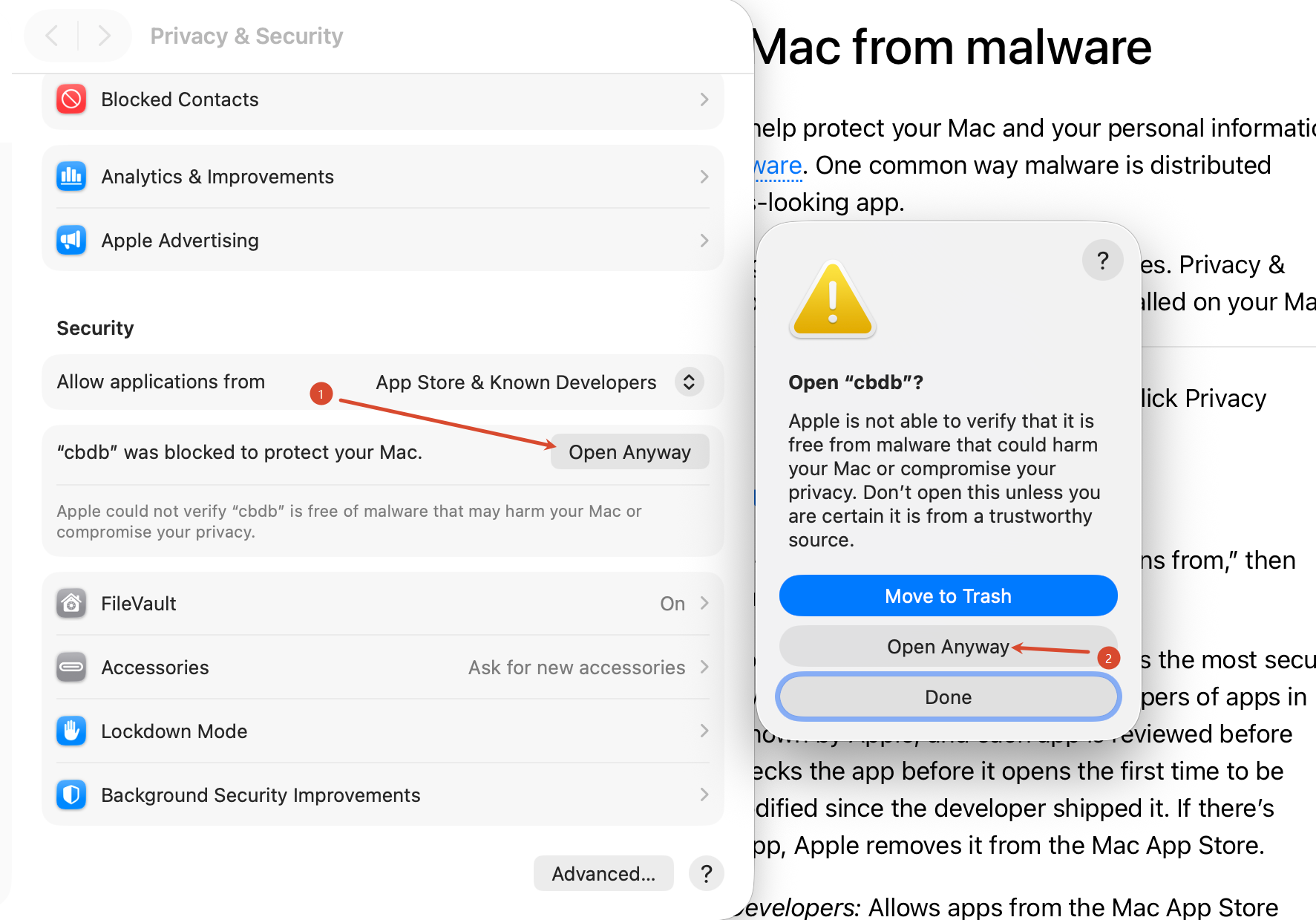
- In Privacy & Security, scroll down to the Security section. You will see the message "cbdb" was blocked to protect your Mac. Click Open Anyway (1). macOS may ask for your login password or Touch ID.
- A new window will appear: Open "cbdb"? Click Open Anyway (2).
- 在 隱私與安全性 頁面中,向下滾動到 安全性(Security) 部分,您會看到提示 "cbdb" was blocked to protect your Mac.(已阻止“cbdb”以保護您的 Mac)。點擊 Open Anyway(仍要打開) (1)。系統可能會要求輸入登錄密碼或使用觸控 ID。
- 隨後會彈出新窗口:Open "cbdb"?(要打開“cbdb”嗎?)。點擊 Open Anyway(仍要打開) (2)。
Step 4 / 第四步
CBDB Desktop will now start. You only need to do Steps 2–4 once. After this, you can open cbdb with a simple double-click.
此時 CBDB Desktop 即會啟動。第二至第四步只需操作一次,之後直接雙擊 cbdb 即可打開。
Note: If you do not see the "cbdb" was blocked… message in Privacy & Security, go back to Step 2 and double-click cbdb again, then return to this page. The message only appears for about an hour after you tried to open the program.
注意: 如果在“隱私與安全性”中沒有看到 "cbdb" was blocked… 的提示,請回到第二步重新雙擊 cbdb,再返回此頁面。該提示僅在您嘗試打開程序後約一小時內顯示。
For more information on using CBDB Desktop, please see the README file in the same folder.
有關 CBDB Desktop 的使用說明,請參閱同一文件夾中的 README 文件。